

Frames
A Frame is an interactive file — a React component generated by an agent — that can be stored in the Pod's Files tab. Frames can display dashboards, reports, status views, or any custom interface an agent builds. For a general introduction to Frames, see the Frames documentation.
Viewing a Frame
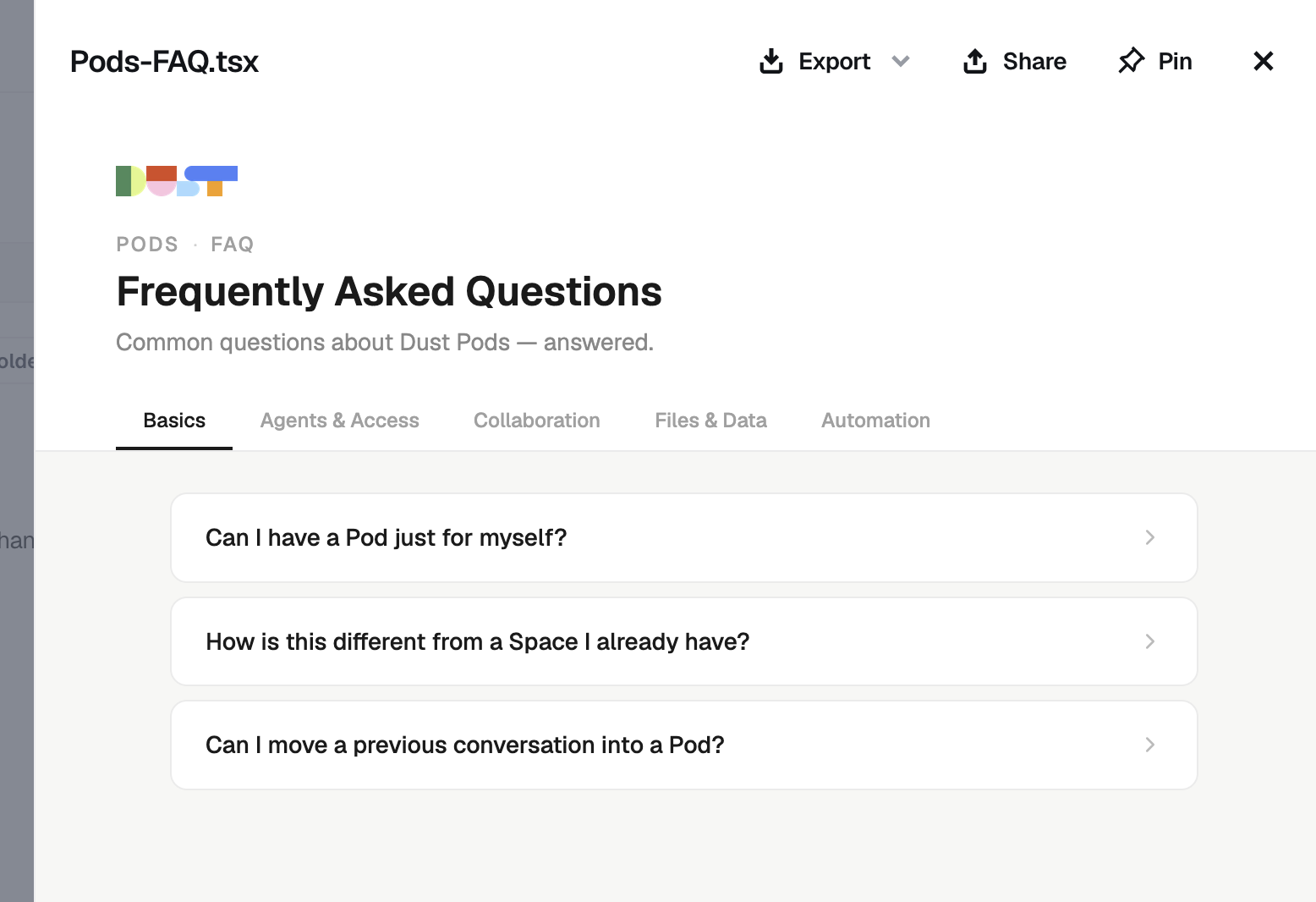
Click any Frame file in the Files tab to open it in a preview panel. The preview shows the full rendering and includes options to export, share, and pin the Frame as the Pod banner (Editors only).
Pinning a Frame as Pod banner
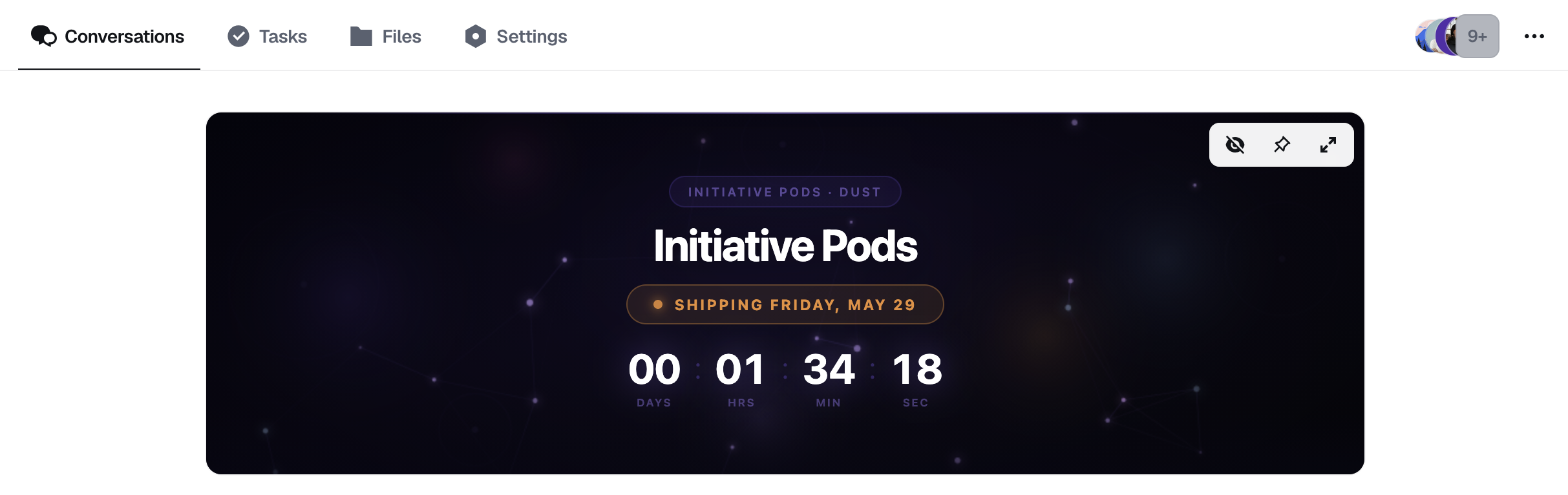
Editors can pin a Frame to make it appear as a banner at the top of the Conversations tab, visible to all members every time they open the Pod. This is useful for surfacing a live dashboard, a status view, or any always-relevant display without requiring members to navigate to the Files tab.
The banner is 280px tall and spans the full width of the Conversations tab. Only one Frame can be pinned at a time — pinning a new one replaces the previous.
Three ways to pin a Frame:
- From the Files tab — open the
...menu on a Frame → Pin as Pod banner - From the Frame preview — click the Pin button in the preview header; it toggles to Pinned when active
- From the pinned banner itself — hover over the banner to reveal the control bar, then click the unpin (📌) icon
Only Pod Editors can pin and unpin Frames. The pin controls are not shown to Members.
How to unpin a Frame:
- From the Files tab: open the
...menu on the pinned Frame → Unpin Pod banner - From the Frame preview: click Pinned in the preview header to toggle it off
- From the banner itself: hover → click the unpin (📌) icon
Banner controls
When hovering over the pinned banner, a control bar appears in the top-right corner:
| Control | What it does |
|---|---|
| Hide | Collapses the banner to a slim bar — personal preference, does not affect other members |
| Unpin | Removes the Frame from the banner for everyone — Editors only |
| Full screen | Opens the Frame in full screen; press Escape to exit |
The collapsed banner shows the Frame name with a Show button to expand it again.
Keeping a Frame up to date
A Frame is generated at a point in time and does not update automatically. If your banner shows data that changes — task counts, progress metrics, a weekly summary — you will want to refresh it on a schedule.
The simplest way is to use the wake-up tool: set up an agent that wakes up on a recurring schedule (daily, weekly, or at whatever cadence makes sense), reads the latest Pod state — tasks, conversations, files — and regenerates the Frame, overwriting the existing one. Since the pinned frame stays the same file, the banner automatically reflects the updated version next time a member opens the Pod.
Example setup:
- Ask an agent to generate your Frame and save it to the Pod's Files tab
- Pin it as the Pod banner
- In a new conversation, ask the same agent to use the wake-up tool to re-run that task every morning
- On each wake-up, the agent reads the current Pod data and overwrites the Frame with a fresh version
Example prompt: "Every Monday morning, read the current tasks and the latest weekly summary from this Pod, regenerate the sprint dashboard Frame, and overwrite the existing one. Use the wake-up tool to schedule this automatically."
There is no need to re-pin after each refresh — the banner stays pinned and always shows the latest version.
Tips for prompting a good banner Frame
Since the banner is always visible at the top of the Conversations tab, it is worth taking a moment to brief the agent well. A few guidelines:
Design for the fixed height. The banner is 280px tall and spans the full width of the tab. Ask the agent to design within that constraint — content that needs scrolling or overflows vertically will be clipped.
Example prompt addition: "The Frame will be used as a Pod banner — it should be exactly 280px tall with no vertical overflow. Optimise the layout for that height."
Show shared, glanceable information. The banner is seen by all Pod members every time they open the Pod. It works best when it surfaces collective status — task progress, key metrics, a countdown, a team board — rather than personal or deeply detailed content.
Example prompt addition: "Prioritise at-a-glance readability. Pod members should understand the key status in under 3 seconds without scrolling."
Ground it in Pod data. The agent can read the Pod's conversations, tasks, and files to populate the Frame with real data. Tell it explicitly what data to use.
Example prompt addition: "Use the task list and the latest weekly summary conversation to populate the Frame. Show open tasks grouped by status and the last update date."
Keep it simple and focused. Frames that try to show everything tend to feel cluttered at 280px. Ask the agent to pick one clear purpose.
Example prompt addition: "Focus on one thing: the current sprint progress. Show the number of tasks open, in progress, and done as a visual bar or card layout."
Iterate. Pin the Frame, review it in context at the top of the Pod, then ask the agent to adjust. The preview sheet and the banner are two different rendering contexts — always check how it looks when pinned.