

Databricks
Admin: Setup in Databricks
Create a Custom OAuth Application in Databricks
-
Log in to the Databricks Account Console
- Go to accounts.cloud.databricks.com
- Click the Settings icon in the sidebar
-
Navigate to App Connections
- Click on the App connections tab
- Click Add connection
-
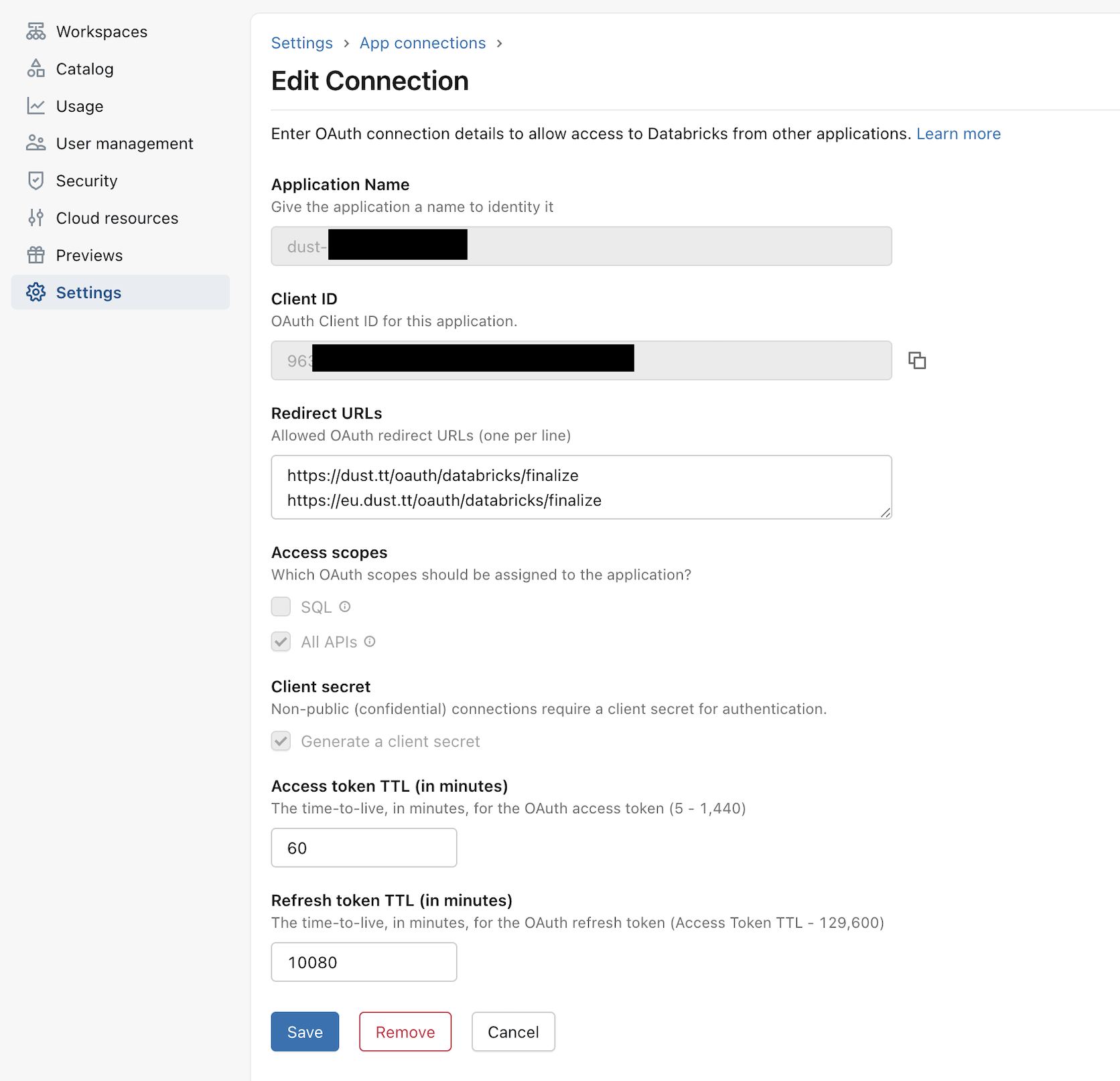
Fill in Application Information
- Connection Name: "Dust Integration"
- Redirect URLs: Add both callback URLs:
https://dust.tt/oauth/databricks/finalize
https://eu.dust.tt/oauth/databricks/finalize
-
Configure Access Scopes
- Select ALL APIs scope (required for full Databricks API access)
The following scopes are automatically included: openid,email,profile(for ID token generation)offline_access(for refresh tokens)
- Select ALL APIs scope (required for full Databricks API access)
-
Set Token Time-to-Live (TTL)
- Access token TTL: 60 minutes (default, adjust as needed)
- Refresh token TTL: 10080 minutes (default, adjust as needed)
-
Generate Client Secret
- ✅ Check Generate a client secret (required for confidential clients)
- Click Create
Get Your Credentials
After creation, a Connection created dialog will display:
- Client ID: Copy this value
- Client Secret: Copy and securely store this value immediately
⚠️ Important: You cannot retrieve the client secret later. Store it securely now.
Admin: Setup in Dust
-
Navigate to Tools Settings
- Go to Spaces > Administration > Tools in your Dust workspace
- Click Add Tools
- Select Databricks
-
Enter Connection Details
- Databricks Account URL: Your Databricks account URL (e.g.,
https://[your_workspace_url].cloud.databricks.com) - Client ID: The Client ID from your Databricks app connection
- Client Secret: The Client Secret from your Databricks app connection
- Databricks Account URL: Your Databricks account URL (e.g.,
-
Choose Credentials Type
- Personal: Each user must authenticate with their own Databricks account. Queries execute with individual user permissions (recommended for security and compliance)
- Workspace: All users share the admin's credentials and permissions when executing queries
-
Complete OAuth Flow
- You'll be redirected to complete the Databricks OAuth flow
- Log in with an admin Databricks account to authorize the connection
- Note: For Personal credential type, this admin account is only used during setup
-
Default Availability
- By default, this tool is added to the Company data Space, making it accessible workspace-wide
Usage
Enable Databricks Tool on an Agent
- In the Agent Builder
- Click Add Tool
- Select Databricks
First-Time User Experience (Personal Credentials)
When users interact with an agent using the Databricks tool for the first time with Personal credential type:
-
They'll see an authentication prompt:
⚠️ Databricks authentication required You need to connect your Databricks account to use this tool. [Connect] button -
After clicking Connect:
- Users authenticate with their own Databricks credentials
- OAuth flow completes
- Status updates to show successful connection
-
Ready to Use:
- Click Retry to re-run the agent query
- All subsequent queries will use their authenticated account
Workspace Credentials Mode
If configured with Workspace credentials:
- No individual authentication required
- All users share the admin's permissions
- Queries execute immediately
Notes
⏱️ Processing Time: Updates to OAuth applications can take up to 30 minutes to process in Databricks.
🔐 Security: Client secrets cannot be retrieved after initial creation. Ensure secure storage immediately.
📚 API Reference: For advanced configuration, see Databricks Custom App Integration API
Updated 3 months ago